Welcome! This guide provides essential information for operating your ESI phone system, covering features like voicemail, call forwarding, and system administration.
What is an ESI Phone System?
ESI Phone Systems represent a robust communication solution designed for businesses of various sizes. These systems offer a comprehensive suite of features beyond basic call handling, including advanced voicemail capabilities, automated attendant functions, and flexible call routing options. They are known for their reliability and scalability, adapting to evolving business needs.
The ESI system allows for streamlined internal and external communications, enhancing productivity and customer service. Features like message monitor mode (live call screening) provide valuable tools for managing interactions. Understanding the system’s programming menu, accessed via the PROG/HELP button, unlocks customization options. Proper installation, potentially requiring an EWH unit in specific environments, is crucial for optimal performance.
Key Features and Benefits
ESI Phone Systems deliver numerous advantages, starting with enhanced communication efficiency. Key features include sophisticated voicemail management – accessing, saving, and deleting messages easily. Call forwarding streamlines connectivity, while the programmable system allows personalized greetings. Cordless handset power-saving mode extends battery life, though status monitoring can be adjusted.
Benefits extend to improved customer service through features like live call screening. System administration, though limited for standard users, offers clock resetting and security options. The default password is often ‘0’ for easy access. Reliable operation, coupled with features like Daylight Saving Time adjustment, ensures consistent performance and user convenience.
Initial Setup & Basic Operation
Getting Started: Power on your ESI phone, understand the display, and learn to make and receive calls – fundamental steps for system operation.
Powering On and Initial Configuration
Initial Power-Up: Upon initial power-up, the ESI phone system will automatically begin its configuration process. Ensure the system is connected to a stable power source. The phone will cycle through a self-test, verifying core functionalities.
Default Settings: The default password is often ‘0’ (no password required), allowing immediate access for basic setup. However, for security, promptly change this default. The system clock may need adjustment, especially concerning Daylight Saving Time (DST) settings.
Administrator Access: Resetting the system clock requires administrator password access, detailed in the Administrator’s Manual under Function 1-4. Proper initial configuration is crucial for optimal performance and security.
Understanding the Phone Display
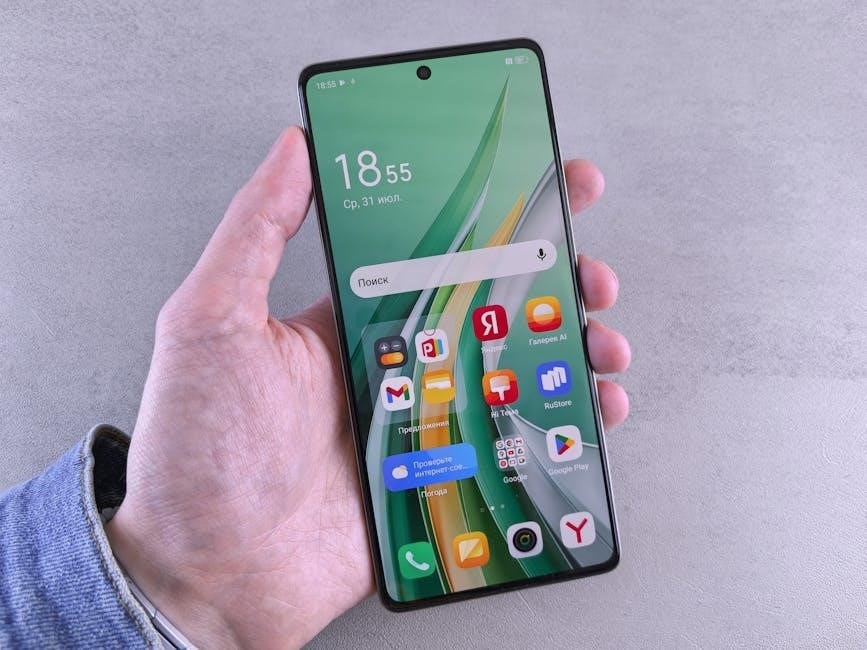
Display Indicators: The ESI phone display provides vital information regarding call status, voicemail, and system features. Key indicators include “New Message” and “Old Message” icons, signaling unread voicemails. The display also shows the current time and date, crucial for accurate system operation.
Feature Access: The display guides users through programming options accessed via the “PROG/HELP” button. Status updates, particularly for cordless handsets, are also visible. Understanding these indicators ensures efficient use of the phone system’s capabilities.
Visual Cues: Pay attention to any flashing icons or specific messages, as they often indicate system alerts or required actions.
Making and Receiving Calls
Outgoing Calls: To initiate a call, simply lift the handset and dial the desired number. The system supports various dialing methods, depending on your configuration. Ensure you dial the correct area code and any necessary extensions.
Incoming Calls: Incoming calls are indicated by a ringing tone and a visual alert on the phone display. Lift the handset to answer. Utilize features like “Message Monitor Mode” (live call screening) to preview messages before answering, if available.
Call Handling: During a call, standard features like hold and transfer are accessible. Refer to the system’s programming guide for specific key assignments.
Voicemail Management
Accessing Voicemail: Easily manage your messages – listen, delete, or save – using dedicated voicemail features for efficient communication and organization.
Accessing Your Voicemail
To access your voicemail, simply press the dedicated voicemail key on your ESI phone. The system will prompt you for your password; the default is often ‘0’ if you haven’t changed it. Once authenticated, you’ll hear the number of new and old messages awaiting your attention.
Follow the voice prompts to navigate the voicemail system. You can listen to messages sequentially or jump directly to specific messages using the keypad. Remember that hanging up during playback will leave the message marked as new. The system offers intuitive controls for managing your inbox efficiently, ensuring you never miss important communications.
Listening to New Messages
After accessing your voicemail, the system typically begins playing new messages automatically. If not, follow the prompts to select the option for “New Messages.” During playback, utilize the keypad for controls: press fast forward to skip ahead, rewind to replay sections, and adjust the volume as needed.
The system announces the caller’s information, if available, before playing the message. Pay close attention to the message details. Remember, interrupting playback doesn’t delete the message; it simply pauses it, leaving it marked as “new” until fully reviewed.
Deleting Voicemail Messages
To delete a voicemail message after listening, typically you’ll press a designated key – often the ‘7’ or ‘9’ key – during or immediately after message playback. The system will confirm the deletion. Be certain before confirming, as deleted messages are generally unrecoverable.
If you accidentally delete a message, there’s usually no undo function. However, some systems offer a “deleted messages” folder with limited recovery options. Regularly deleting old messages frees up storage space within the voicemail system. Remember to hang up when finished to finalize the process.
Saving Voicemail Messages
To save an important voicemail message for future reference, press ‘9’ during or immediately after playback. This action typically marks the message as “saved” or “protected,” preventing accidental deletion during routine cleanup. Saved messages are often stored in a separate folder within your voicemail box.
Accessing saved messages usually involves navigating a specific menu option within the voicemail system. Remember that storage space is limited, so periodically review and delete older saved messages to maintain sufficient capacity. Saving crucial information ensures you can revisit important details as needed.
Programming Basic Features
Customize your system! Access the programming menu using PROG/HELP to personalize greetings and set up call forwarding options easily.
Accessing the Programming Menu (PROG/HELP)
Initiating Programming Mode: To begin customizing your ESI phone system’s features, you’ll need to access the programming menu. This is conveniently done by pressing the PROG/HELP button located on any ESI desktop phone within the system. Upon pressing this button, the system will initiate a series of audible prompts guiding you through the available programming options.
Navigating the Menu: The system will begin to play the normal station programming menu prompts. Carefully listen to these prompts to identify the feature you wish to modify. Use the appropriate buttons on your phone – typically the numeric keypad – to select the desired function. The system will then provide further instructions specific to that feature. Remember to consult the full Administrator’s Manual for detailed instructions on advanced functions.
Setting Personal Greetings
Customizing Your Voicemail: Personalizing your voicemail greeting is a simple yet effective way to provide callers with a professional and informative experience. Access the programming menu via the PROG/HELP button on your ESI phone. Navigate to the voicemail greeting options, typically found within the personal settings section.
Recording Your Message: The system will prompt you to record your greeting. Speak clearly and concisely, stating your name and providing any necessary information, such as your availability. Remember to press ‘9’ to save the message as a new greeting. Hang up when finished; interrupting playback will retain the message as new.
Call Forwarding Setup
Redirecting Your Calls: The ESI phone system allows you to seamlessly forward incoming calls to another extension or an external number. Access the programming menu by pressing the PROG/HELP button on your phone. Navigate to the call forwarding options, usually located within the feature settings.
Configuring Forwarding: You’ll be prompted to enter the destination number. Ensure the number is correctly entered to avoid missed calls. The system supports various forwarding scenarios, including forwarding all calls or forwarding when busy. Confirm your settings and save the changes to activate call forwarding.

Advanced Features
Explore powerful tools! Discover features like Message Monitor Mode for live call screening, Daylight Saving Time adjustments, and cordless handset power-saving options.
Message Monitor Mode (Live Call Screening)
Message Monitor Mode, also known as live call screening, is a valuable feature allowing you to discreetly hear a caller begin their message before deciding whether to intervene. This functionality is not available on 12-key feature phones. To activate this mode, access the programming menu (PROG/HELP) from any ESI desktop phone within the system.
The system will guide you through the programming prompts. Once enabled, when a caller leaves a message, you’ll hear it in real-time. You can then press a designated key – typically ‘1’ – to join the call and speak with the caller directly. Remember to save the message as a new message using ‘9 9’ if desired, and hang up when finished. Be aware that prematurely hanging up during playback will still mark the message as new.
Daylight Saving Time (DST) Adjustment
Current ESI phone systems offer configuration options for automatic Daylight Saving Time (DST) adjustments. This ensures the system clock remains accurate when DST begins or ends, eliminating the need for manual updates. However, accessing and modifying these settings requires Administrator password access. Detailed instructions for adjusting the system clock, including DST settings, can be found within the Administrators Manual under Function 1-4.
Proper time synchronization is crucial for accurate call logging and voicemail timestamps. If your system isn’t automatically adjusting for DST, consult the administrator’s manual to configure the appropriate settings. Failing to do so may result in incorrect time displays and potential scheduling conflicts.
Cordless Handset Power-Saving Mode
ESI Cordless Handsets feature a power-saving mode designed to maximize battery life. Enabling this mode restricts status updates to the handset when it’s not actively in use, conserving energy. However, if continuous, real-time status monitoring is essential – for example, always knowing if a colleague is available – you can disable this feature.
When power-saving mode is active, the handset won’t receive immediate updates regarding other extensions’ status. This trade-off extends battery duration significantly. To adjust this setting, access the system programming menu and navigate to the cordless handset options. Consider your usage needs when deciding whether to enable or disable this mode.
System Administration (Limited User Access)
Administrative functions require a specific password; the default is ‘0’ for no password. Access is restricted to authorized personnel for system clock and security settings.
Default Password and Security
Initial System Access: Upon installation, the ESI phone system is typically configured with a default password of ‘0’ (zero). This signifies that no password is initially required to access administrative functions. However, for enhanced security, it is strongly recommended to immediately change this default setting.
Password Management: Authorized administrators can modify the system password through the programming menu. A strong, unique password should be chosen to prevent unauthorized access and maintain system integrity. Remember to document the new password securely, but separately from the system itself.
Security Considerations: Regularly review user access levels and permissions. Limit administrative privileges to only those personnel who require them. Be mindful of physical security surrounding the phone system hardware to prevent tampering or unauthorized modifications.
Resetting the System Clock
Administrator Access Required: Resetting the system clock necessitates administrator-level password access. Detailed instructions for this process are comprehensively outlined within the Administrators Manual, specifically under Function 1-4. Ensure you have the correct credentials before proceeding.
Daylight Saving Time (DST): Modern ESI phone systems offer automated clock adjustment capabilities for Daylight Saving Time. The system can be configured to automatically update the time when DST begins or ends, minimizing manual intervention.
Manual Clock Adjustment: If automatic DST adjustment is not enabled, or if manual correction is needed, the administrator can access the programming menu to set the correct date and time. Accurate timekeeping is crucial for proper voicemail timestamping and call logging.
Understanding New and Old Message Indicators
The ESI phone system utilizes distinct indicators to differentiate between new and old voicemail messages. Upon accessing your voicemail, the system audibly announces the quantity of both new and old messages awaiting your attention. This allows for efficient prioritization of communications.
New Message Status: A “new” message indicator signifies a message that you have not yet listened to. These messages are typically highlighted or announced with greater prominence within the voicemail system.
Old Message Status: Conversely, an “old” message indicator denotes a message you’ve already reviewed. Hanging up during playback preserves the “new” status; however, listening to a message changes it to “old.”
Troubleshooting Common Issues
Experiencing problems? This section addresses frequent concerns like no dial tone, poor audio, and voicemail access difficulties, offering quick solutions for users.
No Dial Tone
Troubleshooting a lack of dial tone requires a systematic approach. First, verify the handset is securely placed in the base unit. Ensure the power adapter is firmly connected to both the phone system and a working electrical outlet. Check the telephone line connection at the wall jack – confirm it’s properly inserted.
If the issue persists, test the line with a known working phone to isolate whether the problem lies with the ESI system or the telephone service itself. A disconnected line or service outage from your provider could be the cause. Finally, consult the system administrator; they may need to verify line settings within the programming menu.
Poor Audio Quality
Experiencing poor audio quality can stem from several factors. Initially, check the handset speaker and microphone for obstructions. Ensure the volume control is appropriately adjusted – both on the phone itself and potentially within system settings. Investigate the telephone cord connecting the handset to the base; a damaged cord can significantly degrade sound.
External interference, like nearby electronic devices, might contribute to static or noise. If using a headset, verify its connection and functionality. For persistent issues, the system administrator should examine the line quality and internal system configurations to rule out network-related problems.
Voicemail Access Problems
Difficulty accessing voicemail often relates to incorrect password entry. Remember the default password is ‘0’ (zero) if you haven’t changed it. Double-check your extension number is dialed correctly before entering your password. If you’ve forgotten your password, contact your system administrator for assistance – they have the necessary privileges to reset it.
Ensure your phone system is properly configured and connected to the voicemail server. A temporary network outage could also prevent access. The system will announce the number of new and old messages; listen carefully for any error messages during the access attempt.
Safety and Operational Guidelines
Prioritize safety! Utilize proper fume extraction during welding/cutting, and never use lasers for interventions with the central nervous or cardiovascular systems.
Welding/Cutting Fume Extraction
Essential Safety Practice: When performing welding or cutting operations in proximity to the ESI phone system, or within the same facility, the implementation of a suitable fume extraction system is paramount. These processes generate fumes and gases that can be hazardous to both personnel and sensitive electronic equipment;
A properly installed system should effectively expel these fumes, maintaining a safe and clean working environment. Consider installing a system capable of handling the specific types of fumes produced by your welding/cutting activities. Regular maintenance and inspection of the fume extraction system are crucial to ensure its continued effectiveness. Prioritizing ventilation safeguards both health and the reliable operation of the communication infrastructure.
Laser Safety Precautions
Critical Safety Warning: Exercise extreme caution when utilizing lasers near the ESI phone system or within the operational environment. Lasers present significant hazards if misused, potentially causing severe eye and skin damage.
Specifically, do not employ lasers for any interventions involving direct contact with the central nervous system (CNS) or central cardiovascular system. Improper laser application can lead to irreversible harm. Always adhere to established laser safety protocols, including the use of appropriate protective eyewear and controlled access to laser operation areas. Prioritize safety training and responsible laser handling to prevent accidents and ensure a secure working environment for all personnel.
System Documentation
Essential resources include the operation manual (1 piece), EWH installation requirements, and the administrator’s manual for detailed programming instructions and system functions.
Operation Manual Location
Locating your ESI Phone System’s Operation Manual is crucial for comprehensive understanding and troubleshooting. A physical copy, consisting of one piece as noted in system documentation, should have been provided with the initial system installation. This manual details all standard operating procedures, feature explanations, and basic system administration tasks.
If the physical manual is misplaced, a digital version may be available from your system administrator or the ESI website (access may require registration). Familiarize yourself with its contents to maximize system usability and efficiently address any operational questions. Proper documentation access ensures smooth and effective phone system management within your organization.
EWH Installation Requirements
Proper installation of the EWH (Emergency Warning Hardware) is paramount for system reliability and safety. When integrating EWH with your ESI phone system, specific environmental conditions must be met. The documentation clearly states that installation spaces require waterproofing to protect the hardware from potential damage.
Furthermore, ensure the installation location adheres to all local electrical codes and regulations. Incorrect installation can compromise the EWH’s functionality during critical events. Consult a qualified technician for assistance if you are unsure about any aspect of the installation process, guaranteeing optimal performance and adherence to safety standards.