Scosche offers diverse FM transmitters, enhancing in-car audio experiences by wirelessly streaming content from devices. These solutions provide convenient access to music and calls.
What is a Scosche FM Transmitter?
A Scosche FM transmitter is a device that broadcasts audio from your smartphone or other Bluetooth-enabled device to your car’s stereo system via an unused FM radio frequency. Essentially, it acts as a miniature radio station, transmitting audio signals wirelessly. These transmitters plug into your vehicle’s 12V power socket and utilize FM technology to deliver sound.
Scosche offers various models, like the FMT7 and BTFreq Pro, each designed to provide a seamless audio streaming experience. They eliminate the need for auxiliary cables or complicated installations, offering a user-friendly solution for enjoying music, podcasts, and hands-free calling on the road. The devices feature Bluetooth connectivity for pairing with your smartphone.
Why Use a Scosche FM Transmitter?
Scosche FM transmitters offer a convenient and cost-effective solution for upgrading your car’s audio system without extensive modifications. If your vehicle lacks Bluetooth connectivity or an auxiliary input, a Scosche transmitter provides wireless audio streaming from your smartphone. They are incredibly easy to install, simply plugging into the 12V power socket.
Beyond music, these transmitters enable hands-free calling, enhancing safety while driving. Models like the BTFreq Pro offer advanced features and clear audio quality. Accessing user manuals and PDF instructions simplifies setup and troubleshooting. Ultimately, a Scosche transmitter delivers modern convenience to older vehicles.
Understanding the Scosche FMT7
The Scosche FMT7 is a universal FM transmitter with TuneIn integration, offering seamless audio streaming and access to global radio stations.
Key Features of the FMT7
The Scosche FMT7 boasts several key features designed for optimal in-car audio connectivity. It utilizes Bluetooth technology for wireless streaming from smartphones and other compatible devices, eliminating the need for cumbersome cables. A prominent feature is its integration with the TuneIn radio app, granting access to a vast library of global radio stations and podcasts directly through your car stereo.
Furthermore, the FMT7 includes a built-in microphone enabling hands-free calling, promoting safer driving habits. Its digital signal processing (DSP) technology minimizes noise and interference, ensuring clear audio transmission. The device also features a convenient auto scan function to locate the clearest FM frequency in your area, reducing static. Finally, the FMT7 supports quick charging via a USB port, keeping your devices powered during your commute.
Package Contents
Upon opening your Scosche FMT7 package, you’ll find several components ensuring a seamless setup and operation. The primary item is, of course, the FMT7 FM Transmitter unit itself, designed for easy connection within your vehicle. Included is a quick start guide, providing essential instructions for initial pairing and usage, helping you quickly enjoy wireless audio streaming.
Additionally, the package contains a 3.5mm auxiliary cable, offering an alternative wired connection option for devices lacking Bluetooth capability. A USB-C charging cable is also provided, allowing you to power and charge the transmitter efficiently. Finally, you’ll receive helpful documentation outlining safety precautions and warranty information, ensuring a secure and supported user experience.
Setting Up Your Scosche FM Transmitter
Begin by plugging the Scosche transmitter into your car’s 12V socket, then pair it via Bluetooth for wireless audio streaming and hands-free calling.
Connecting to Your Car’s 12V Power Socket
The initial step in utilizing your Scosche FM transmitter involves securely connecting it to your vehicle’s 12V power socket, often referred to as the cigarette lighter socket. Ensure the transmitter is firmly inserted to establish a stable power connection.
This connection provides the necessary power for the transmitter to operate, enabling Bluetooth pairing and FM broadcasting capabilities. Once connected, the device will typically power on automatically, indicated by an illuminated LED or a welcome tone.
If the device doesn’t power on, verify the socket is functioning correctly by testing it with another accessory. A secure connection is crucial for optimal performance and preventing interruptions during use.
Bluetooth Pairing Process
To pair your smartphone with the Scosche FM transmitter, activate Bluetooth on your phone and initiate a device search. The transmitter will appear in the list of available devices, typically identified as “BTFREQ” or a similar designation. Select the transmitter from the list to begin the pairing process.
You may be prompted to enter a pairing code, usually “0000” or “1234”. Confirm the pairing request on both your phone and the transmitter. A successful connection is often indicated by an audible tone or a visual confirmation on the transmitter’s display.
Once paired, the transmitter will automatically reconnect to your phone whenever both devices are within range.
Manual Pairing Instructions
If automatic pairing fails, initiate manual pairing by double-pressing the “MODE” button on the Scosche transmitter. This action puts the device into pairing mode, making it discoverable by your smartphone. Ensure your phone’s Bluetooth is enabled and actively searching for devices.
Some models may require holding the “MODE” button for a longer duration – consult your specific model’s user manual for precise instructions. Once the transmitter is in pairing mode, select it from your phone’s Bluetooth device list.
Confirm the pairing request and enter the passcode “0000” if prompted. A successful connection will be indicated by a confirmation tone or light.
Using the Scosche FM Transmitter
Scosche transmitters broadcast audio via FM radio; select a clear frequency, adjust volume for optimal sound, and enjoy hands-free calling features.
Selecting an FM Frequency
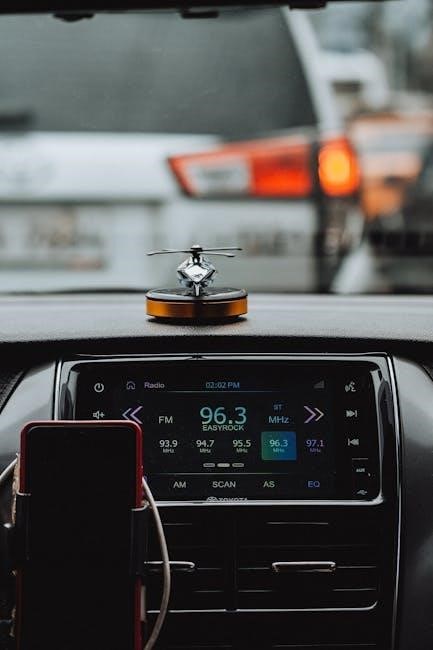
Choosing the right FM frequency is crucial for clear audio transmission with your Scosche transmitter. Begin by scanning available frequencies in your vehicle; look for stations with minimal or no existing broadcast signal. The goal is to find a “blank” space on the FM dial to avoid interference.
Many Scosche models feature a scan function that automatically searches for open frequencies. Alternatively, you can manually cycle through frequencies using the transmitter’s controls. Once you’ve identified a potential frequency, tune your car’s radio to match it. If you experience static or distortion, try a different frequency. Remember to test several options to ensure the most stable and clearest audio output. Consider frequencies outside of commonly used commercial radio bands for better results.
Adjusting Volume and Audio Quality
Optimizing volume and audio quality on your Scosche FM transmitter involves balancing settings on both the transmitter itself and your car’s stereo system. Start by adjusting the volume on your smartphone or music source to approximately 75-80% of its maximum level. Then, use the volume controls on the Scosche transmitter to fine-tune the output.
If the audio sounds distorted, reduce the volume on both devices. Experiment with different FM frequencies, as some channels may offer better clarity. Ensure the transmitter is positioned for optimal signal transmission, away from obstructions. Some models offer bass boost or equalization settings; explore these to enhance the sound profile to your preference. A clean FM frequency is key for superior audio.
Answering and Making Calls
Many Scosche FM transmitters with Bluetooth capability feature hands-free calling. To answer an incoming call, simply press the multi-function button on the transmitter. To end a call, press the button again. Some models automatically answer calls when a signal is detected.
To initiate a call, use voice commands through your connected smartphone (like “Hey Siri” or “OK Google”), or dial directly from your phone. The Scosche transmitter will then relay the audio through your car’s speakers. Ensure your phone’s microphone is clear for optimal call quality. The built-in microphone on the transmitter may also be used depending on the model.
Troubleshooting Common Issues
Common problems include sound loss, Bluetooth pairing failures, and static interference. Refer to the user manual for specific solutions and troubleshooting steps.
No Sound Output
If you experience no sound from your Scosche FM transmitter, begin by verifying the volume levels on both your connected device and your car’s stereo system. Ensure the transmitter is securely plugged into the 12V power socket, providing adequate power. Double-check the FM frequency selected on the transmitter matches the frequency tuned into your car radio.
Confirm Bluetooth pairing is active and stable; a disconnected device won’t transmit audio. Try re-pairing your smartphone or audio player. If using an auxiliary input, inspect the cable for damage. Also, some car stereos have mute functions – ensure these aren’t engaged. Finally, consult the user manual for model-specific reset procedures, as a simple reset can often resolve unexpected audio issues.
Bluetooth Connection Problems
Experiencing Bluetooth connectivity issues with your Scosche FM transmitter? First, ensure Bluetooth is enabled on your smartphone or audio device. Verify the transmitter is in pairing mode – often initiated by pressing and holding the mode button until the indicator light flashes. If your device doesn’t appear in the transmitter’s Bluetooth list, try restarting both devices.
Clear previously paired devices from the transmitter’s memory to prevent conflicts. Ensure no other Bluetooth devices are interfering with the connection. Some transmitters require manual pairing; consult your user manual for specific instructions. If problems persist, try a different Bluetooth profile or update your device’s operating system. A factory reset of the transmitter might also resolve stubborn connection errors.
Static or Interference
Encountering static or interference while using your Scosche FM transmitter? The primary cause is often selecting a crowded FM frequency. Try scanning for a clearer channel with minimal broadcasting. Adjusting the transmitter’s orientation or relocating it within your vehicle can also minimize interference. Ensure the transmitter isn’t near other electronic devices that could cause disruption.
Check the 12V power socket for any electrical noise; try a different socket if possible. Some vehicles have inherent electrical interference. Experiment with different frequencies and volume levels to find the optimal setting. A higher quality cable connecting your audio source can also reduce noise. If static persists, consult the user manual for troubleshooting specific to your model.
Downloading Scosche User Manuals & PDF Instructions
Scosche provides downloadable user manuals and PDF instructions for all their FM transmitters, easily accessible online for convenient troubleshooting and setup guidance.
Locating the Correct Manual for Your Model
Finding the right user manual for your specific Scosche FM transmitter is crucial for optimal performance and understanding its features. Begin by identifying the exact model number of your device; this is typically found on the transmitter itself or its original packaging.
Once you have the model number, navigate to the Scosche website’s support or manuals section. Utilize the search function, entering your model number to filter the available documents. Alternatively, browse through the categorized list of FM transmitters to locate your specific model.
Ensure the manual corresponds to your device’s version, as updates and revisions may exist. Scosche often provides manuals for older models as well, offering a comprehensive resource for all users. Correct identification guarantees access to accurate instructions and troubleshooting tips.
Accessing PDF Documents Online
Scosche provides convenient online access to PDF versions of their FM transmitter user manuals. After locating the correct manual for your model on the Scosche website, you’ll typically find a direct link to download the PDF document. Clicking this link will initiate the download process, allowing you to save the manual to your computer or mobile device.
These PDF manuals offer a portable and easily searchable resource for troubleshooting, understanding features, and setting up your device. You can view them using any standard PDF reader, such as Adobe Acrobat Reader, which is freely available.
Many third-party websites also archive Scosche manuals, but always verify the source’s reliability to ensure you’re accessing an accurate and up-to-date version.

Scosche BTFreq Pro Specifics
The BTFreq Pro powers on by plugging into your car’s 12V socket; the mode button controls various functions for optimal wireless audio streaming.
Powering Up and Initial Setup
Scosche’s BTFreq Pro begins operation simply: insert the device into your vehicle’s 12V power socket. Upon connection, the unit will automatically power on, initiating the setup process. The device is designed for ease of use, minimizing initial configuration complexities.
For first-time use, the BTFreq Pro will enter pairing mode, indicated by a flashing light. This allows your smartphone or other Bluetooth-enabled device to discover and connect to the transmitter. Ensure your device’s Bluetooth is enabled and actively searching for available connections. Once detected, select “Scosche BTFreq Pro” from the list of available devices on your smartphone. A confirmation message will appear on your phone screen, verifying a successful connection.
Following successful pairing, the BTFreq Pro is ready for audio transmission.
Understanding the Mode Button Functionality
The Scosche BTFreq Pro’s Mode button is central to its operation, controlling various functions. A single press typically cycles through available audio sources, such as Bluetooth streaming, or potentially a built-in microphone for calls.
Crucially, a double-press of the Mode button initiates manual Bluetooth pairing. This is useful if your device isn’t automatically detected or if you need to connect to a different smartphone. The unit will then enter pairing mode, becoming discoverable. The Mode button also manages other settings, potentially including noise reduction or equalization profiles, depending on the specific model features.
Refer to the full user manual for a comprehensive understanding of all Mode button functions and their corresponding actions.

FCC ID Information (IKQBTFM3)
Scosche Industries’ Bluetooth FM transmitter, model BTFM3, carries FCC ID IKQBTFM3, ensuring compliance with US regulations. User manuals are readily available online.
Details on FCC Compliance
Scosche’s BTFM3 FM transmitter, identified by FCC ID IKQBTFM3, adheres to Part 15 of the FCC regulations. This signifies it’s designed to minimize interference with other devices. Operation is subject to two conditions: the device must not cause harmful interference, and it must accept any interference received, including that which may cause undesired operation.
Changes or modifications not expressly approved by Scosche could void the user’s authority to operate the equipment. The device has been tested and found to comply with the limits for a Class B digital device, ensuring reasonable protection against harmful interference in a residential installation. The user manual provides detailed information regarding FCC compliance and responsible usage guidelines.
User Manual Availability for BTFM3
A comprehensive user manual is readily available for the Scosche BTFM3 Bluetooth FM transmitter, offering detailed instructions for setup, operation, and troubleshooting. This document, often found as a PDF, covers everything from initial power-up and Bluetooth pairing to understanding the various mode functionalities.
Users can typically access the BTFM3 manual through Scosche’s official website or various online document repositories. The manual includes specifics on connecting to a car’s 12V power socket, selecting optimal FM frequencies, and resolving common issues like static or connection problems. Downloading the PDF ensures convenient offline access to these vital instructions.